Upload your website files
Use the dashboard File Manager or FTP to put your site into public_html.
Last updated
Your website lives in public_html for its domain. Two ways to get files there:
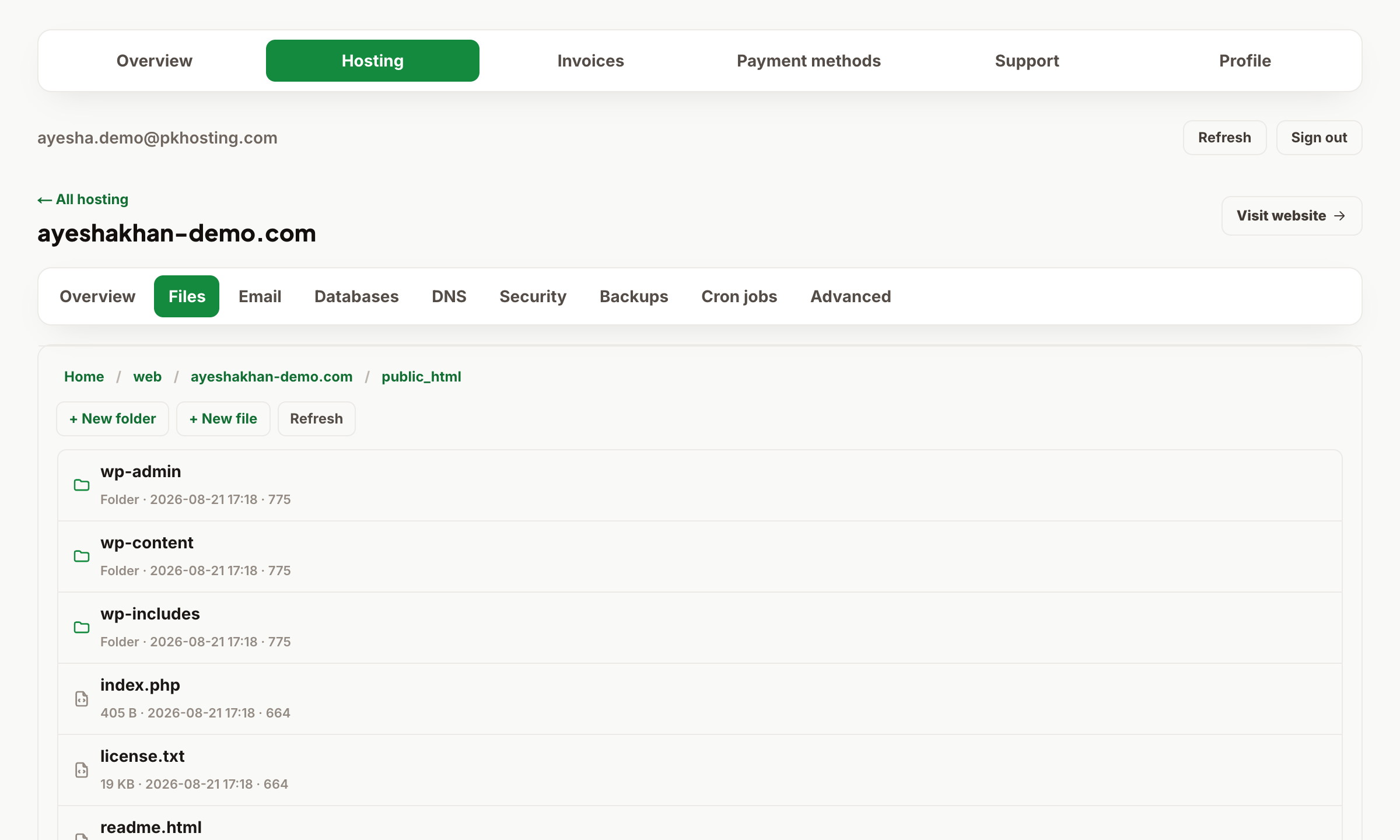
File Manager (easiest): open Dashboard → Hosting → your website → Files. Browse into public_html, then create folders/files, edit text files, or delete items. It's ideal for quick edits and small uploads.
FTP (for whole sites): use an FTP client such as FileZilla with the hostname, username and password from your hosting welcome email (host is usually your server's hostname or ftp.yourdomain.com, port 21). Upload your files into public_html.
Important: the file that loads first is index.php or index.html in public_html. If you upload into a sub-folder (e.g. public_html/mysite), your site will be at yourdomain.com/mysite instead of the root. Never delete the public_html, web, or mail folders themselves — that takes your site and email offline.
Still need a hand?
Open a ticket from your dashboard with your domain and a screenshot — our team replies fast.